Word Count vs Character Count: Check the Limit Before Editing
Word count vs character count: identify the rule first
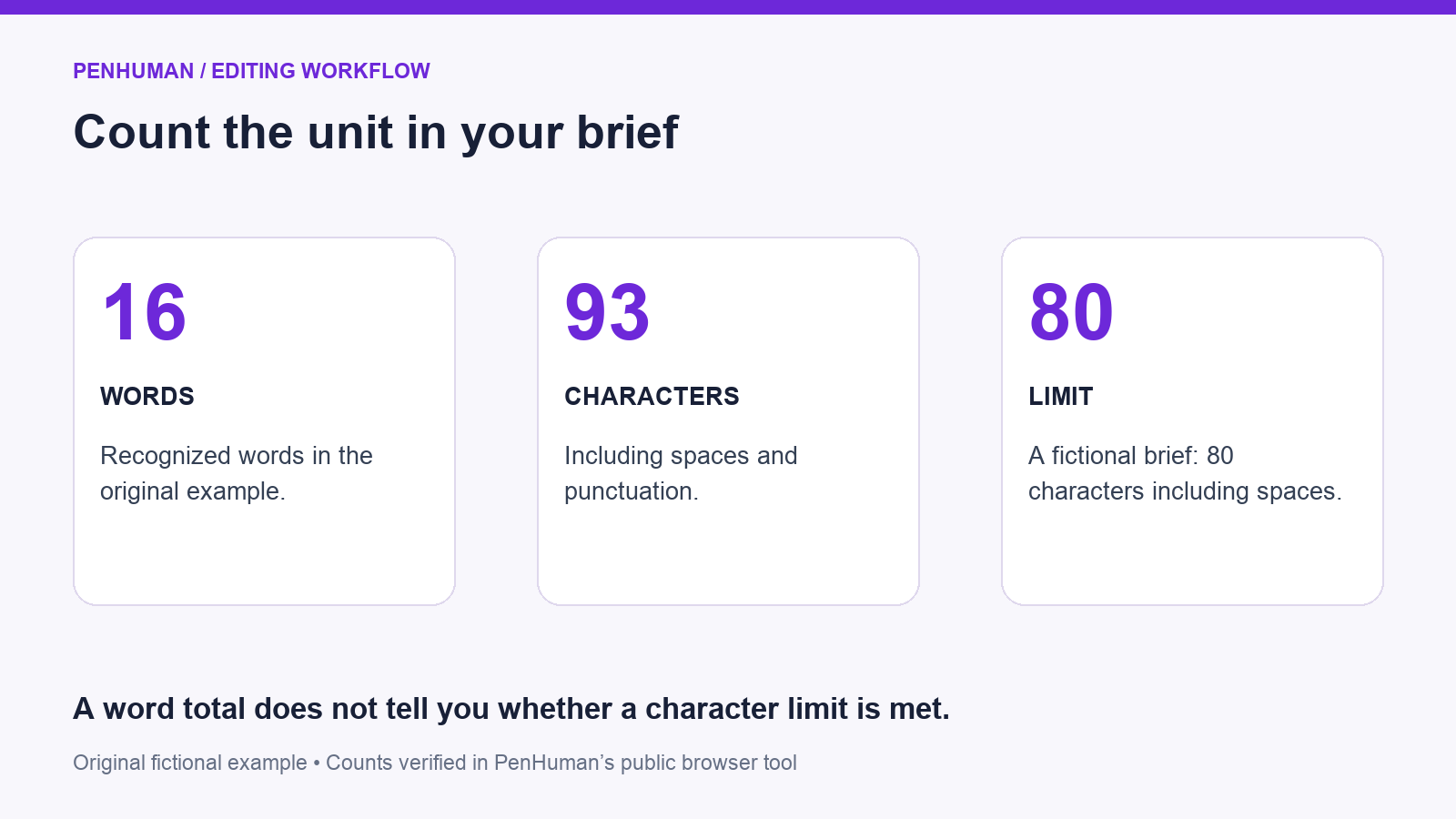
The unit your brief limits explains the practical difference in word count vs character count. A word total measures the words a counter recognizes. A character total measures smaller text units, commonly including spaces and punctuation, under that tool’s counting rules. A short message can fit a word target and still exceed a character limit. Before cutting anything, write down the permitted unit, whether spaces count, and which part of the draft is included. Then measure the exact text that the recipient will receive.
Check a draft without creating an account using the PenHuman Word Counter. Its public page displays words, characters and a separate count labeled No spaces as you type or paste. Compare those values with the brief instead of choosing whichever number looks smaller. If the destination form has its own counter, use that as the final acceptance check. A count from a preparation tool helps you edit, but it cannot override the receiving form’s rules or explain every difference between counting systems.
Spaces, punctuation and pasted text change the total
For ordinary English text, PenHuman’s character total includes each letter, punctuation mark and space. It also includes tabs and line breaks. In a browser check for this guide, the sample Go followed by a tab, then to, then a line break and work. showed 3 words, 11 characters and 9 without whitespace. The public No spaces figure removes tabs and line breaks as well as ordinary spaces. This makes the label useful for comparison, but you should check what a recipient means by excluding spaces.
Paste only the material covered by the requirement. A copied email can include its subject line, signature, quoted history or an extra blank line at the end. Those additions may change the character total without adding information to the message you intend to submit. Keep the original separately, select the intended passage, and look at its beginning and ending after pasting. Do not remove needed spaces simply to force a count down: unreadable copy has not met the reader's need, even when a field accepts it.
A worked edit for an 80-character brief
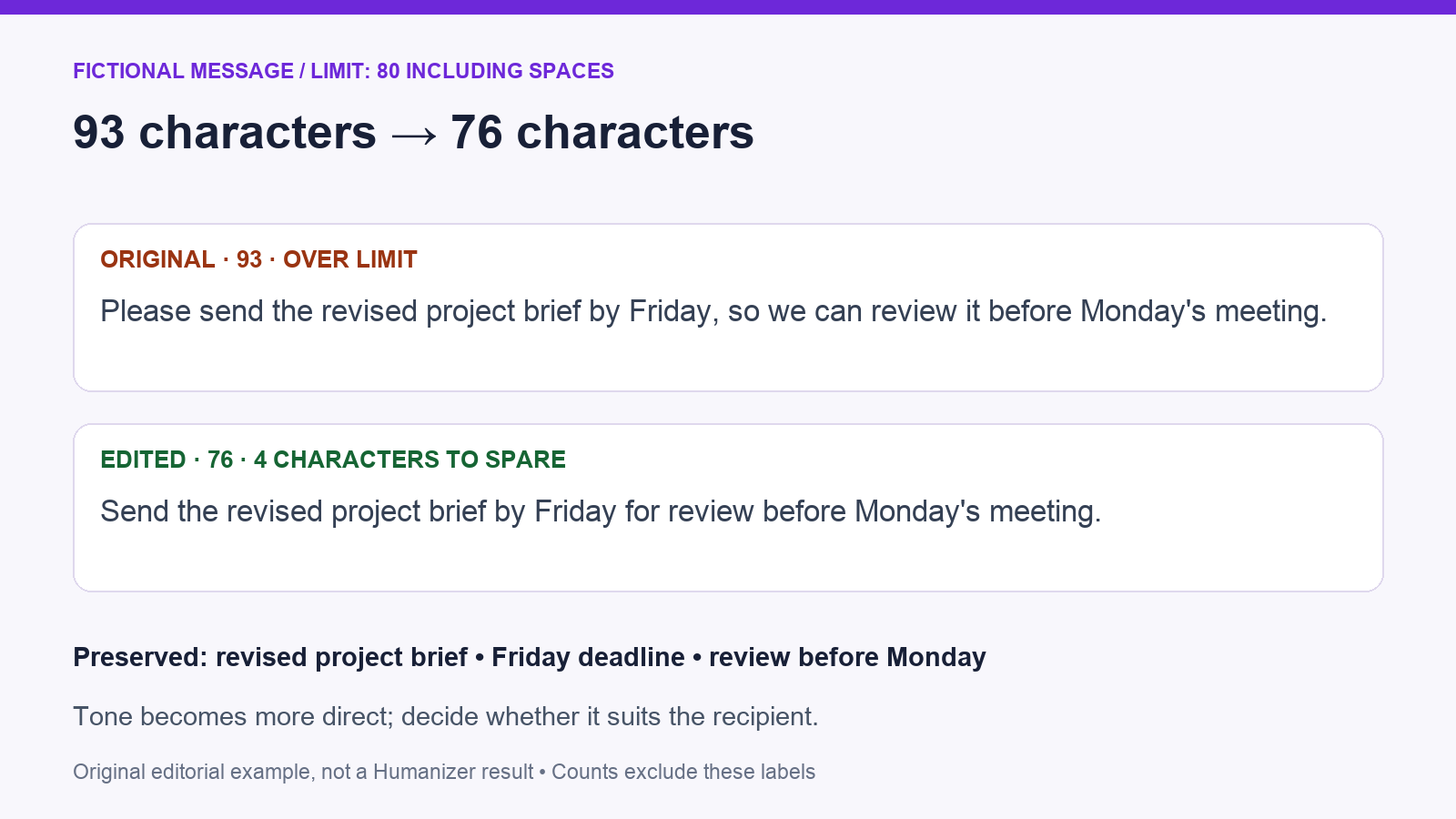
Take a fictional project message whose 80-character limit includes spaces and punctuation. The original sentence below contains 16 words and 93 characters in PenHuman’s public counter. It exceeds the stated limit. The edited sentence contains 12 words and 76 characters, leaving 4 characters available. These are original editorial examples with browser-verified counts, not customer results or generated Humanizer outputs. Copy only the sentence when checking it; surrounding quotation marks or a trailing newline would alter the count and make the comparison inconsistent.
The more concise version keeps the requested document, the Friday deadline and the review before Monday’s meeting. It removes the opening politeness marker and simplifies the explanation of purpose, so its tone is more direct. Decide whether that tone suits the recipient before accepting it. The change removes 17 characters and 4 words, but the useful result is a message that fits the brief while preserving the intended action and timing. For this small edit, manual revision is sufficient; the example is below the Humanizer’s minimum draft length.
- Original — 93 characters: Please send the revised project brief by Friday, so we can review it before Monday's meeting.
- Edited — 76 characters: Send the revised project brief by Friday for review before Monday's meeting.
- Both counts include spaces and punctuation, but exclude the labels shown before each sentence.
- The original has 78 characters without whitespace. That smaller number does not satisfy a brief that explicitly includes spaces.
Why word count vs character count can vary between tools
The counter’s rules determine where word boundaries fall. Hyphenated terms, apostrophes, punctuation and languages without spaces can produce different totals across tools. PenHuman’s public counter uses the browser’s word segmentation when available, with a fallback for other environments. Its result should not be treated as a universal definition of a word. For a submission with a strict word limit, compare the final text in the required application. If the counts differ, record the tool and selected passage before assuming that a revision added or removed words.
Symbols can make character totals less obvious. PenHuman’s public counter counts Unicode code points rather than UTF-16 units. For example, Hi followed by a space and the smiling emoji 🙂 totals 4 characters: the emoji itself contributes one code point. A combined emoji or an accent built from several code points can still look like one symbol while contributing more than one to the count. MDN explains this distinction between code points and visible symbols. Use the public counter to prepare text, then verify the final emoji-heavy or multilingual submission in its destination.
Check the same selected text in your document editor
On a computer, open the Tools menu in Google Docs to find Word count. Google’s help page describes counts for words and characters, including a character count without spaces. Its whole-document word count excludes headers, footers and footnotes unless you select a particular section. Select the exact passage when the requirement applies only to that passage. Before comparing a copied result with another counter, confirm the selection includes the same punctuation and endings. Otherwise, you may be comparing different text rather than different counting methods or an actual editing change.
According to Microsoft’s Show word count guidance, Word displays a running word total in the status bar and provides additional counts, including characters. Selecting part of a document gives a partial word count. Use this selection approach when a brief covers a summary rather than the entire report. Keep the same selection boundaries when comparing versions. If the deliverable is ultimately a website field, paste the approved passage there for the final check; the word processor’s figure is useful context, while the receiving field determines whether that submission fits.
A draft word range is separate from remaining credits
Keep this distinction in mind when preparing text for the PenHuman Humanizer. Basic currently includes 3,900 Humanizer characters that do not reset, and an individual draft must contain 80–600 words while fitting the remaining character allowance. Those are separate checks. A draft inside the word range is not guaranteed to fit the available balance, especially after earlier rewrites. Check the current plan information and your workspace balance before running a passage. The public counter is a preparation aid, not an authoritative preview of the account’s billed usage.
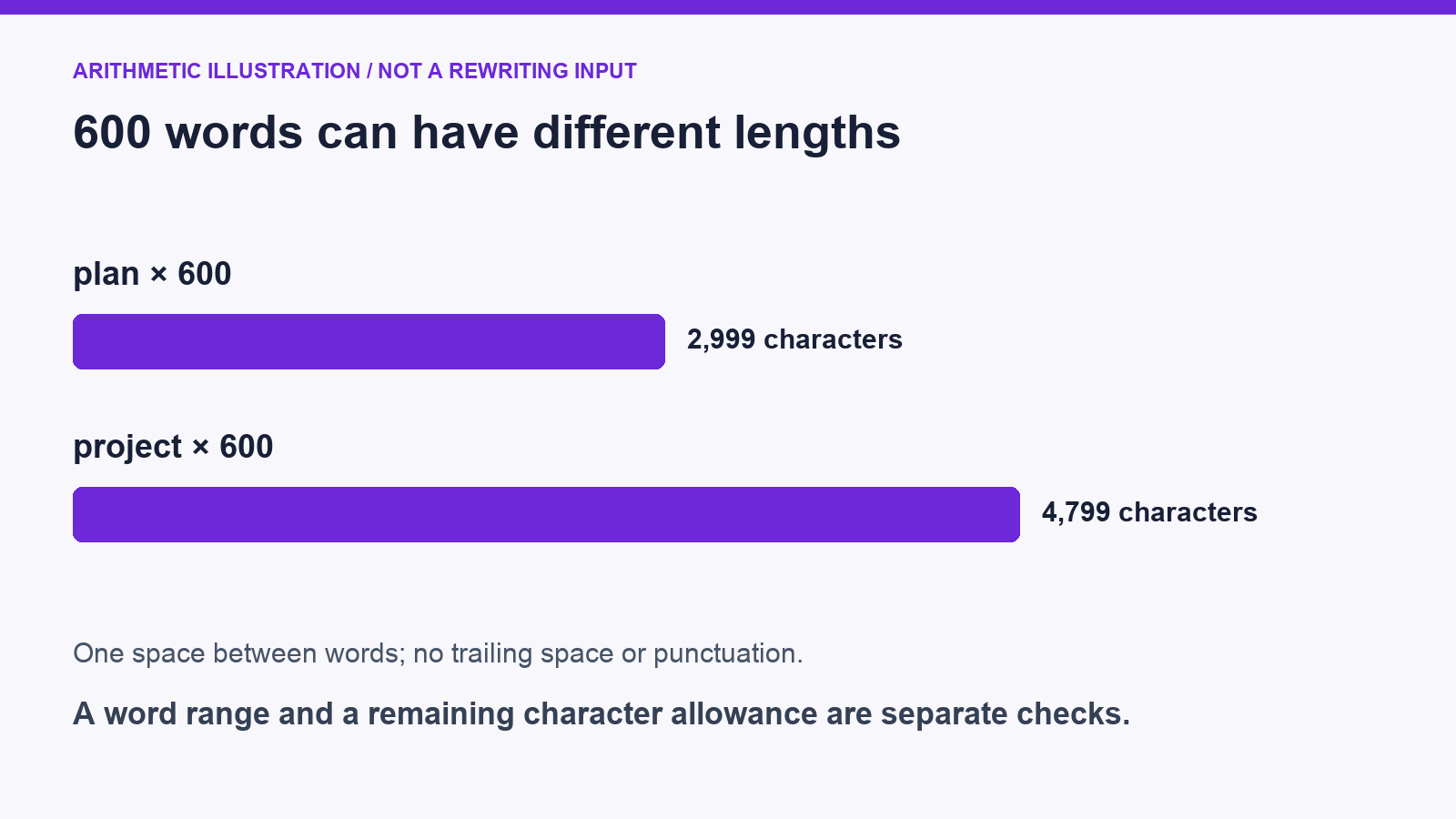
A simple arithmetic illustration explains why word totals alone cannot settle a character budget. Repeating the word plan 600 times with a single space between words produces 2,999 characters. Repeating project under the same conditions produces 4,799 characters. Both strings contain 600 words, but their character totals differ because their word lengths differ. These artificial strings explain the arithmetic; they are not useful drafts to submit for rewriting. For real work, choose a complete passage that needs revision and check the actual text rather than estimating usage from a word total.
Cut repetition without deleting the conditions
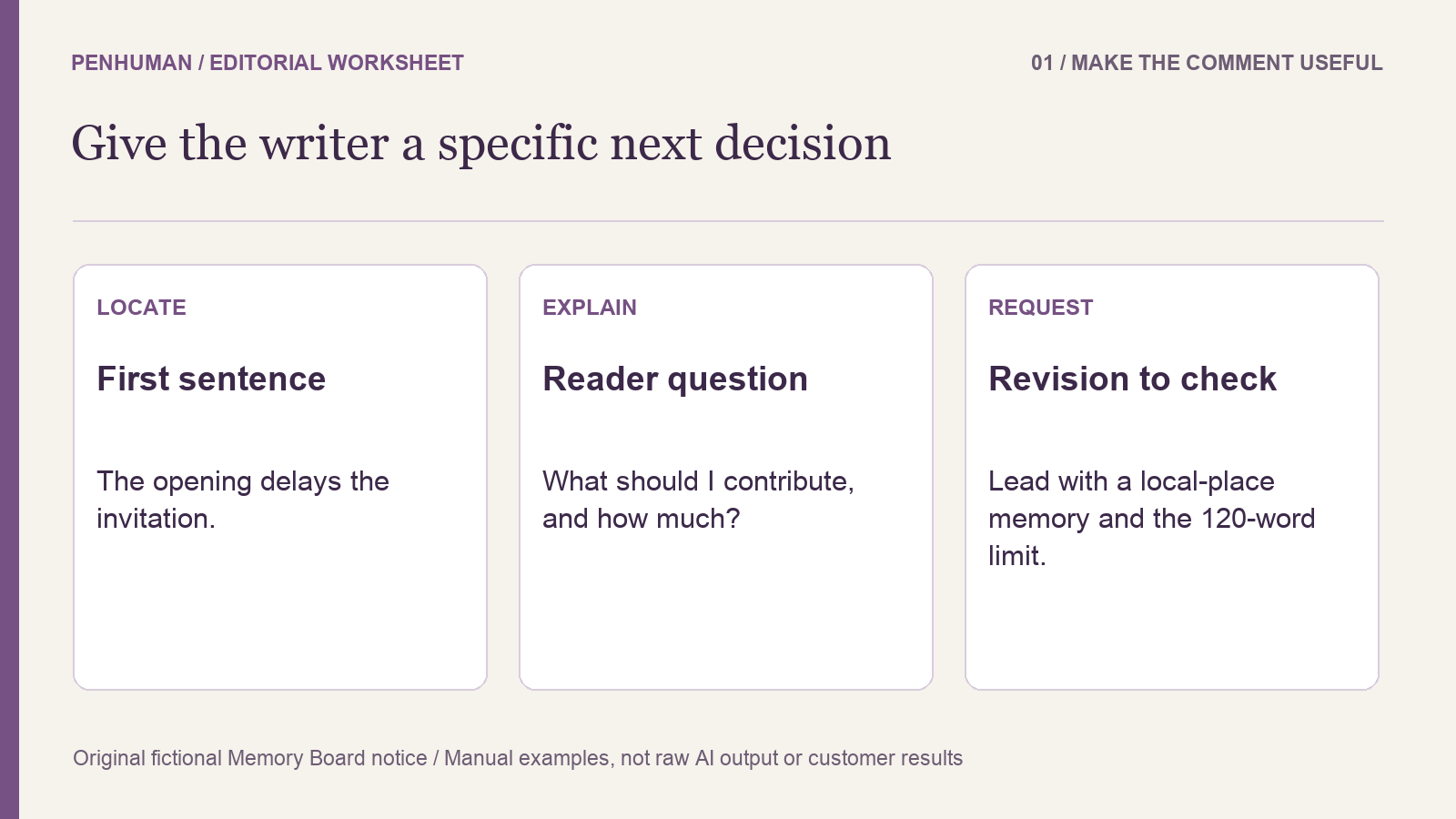
Before choosing what to remove, read the message for meaning. Identify the action, responsible person, deadline and any condition that changes what the reader should do. Then remove repeated introductions, unnecessary explanations of purpose and words that duplicate a nearby phrase. Compare the edited version with that factual list. A shorter sentence can accidentally turn a request into a promise, remove an exception or move a deadline. Meeting the numerical limit does not compensate for those changes, so preserve the information that makes the instruction accurate and usable.
A rewrite can provide another wording option for a longer passage that meets the entry requirements. Save the source, review the result against its facts and recount the accepted edit. Keep required quotations and source attribution intact rather than shortening them silently. If only a few characters need removing, try a precise manual change first. Do not add filler to a short message just to make it eligible for a rewriting tool. The aim is a suitable finished message, with the counter serving as one check in that editorial process.
Finish with a repeatable count-and-review handoff
Beside the draft, record the limit in plain language: characters including spaces, selected summary only, checked in the destination field. That note gives the next reviewer a clear measurement to repeat. Recount after the final wording change, since replacing a date, adding a link or restoring a necessary qualification can change the result. Keep any subject line or surrounding instruction separate when the brief excludes it. When another person edits the text, ask them to verify the same scope before treating the previous count as current.
For a quick view of the text, start with the public counter. Use the worked example above to decide which details must survive an edit, then confirm the finished passage in the application where it will be used. If a complete longer draft needs another phrasing option, review the Humanizer requirements and choose a passage within your available allowance. A clear handoff includes the approved wording, the counting rule and the final check, so the recipient can use the message without guessing which version or total you intended.
Frequently Asked Questions
Does a character limit include spaces?
The stated rule and the receiving application determine whether spaces count. PenHuman’s public Characters total includes ordinary spaces, punctuation, tabs and line breaks; its No spaces figure removes whitespace. Read the brief before selecting a number. In the fictional example, the original sentence has 93 characters including spaces and 78 without whitespace. A limit that includes spaces must use the larger total for that text. If the requirement does not explain the rule, clarify it with the recipient before removing useful content or assuming the smaller figure will be accepted.
Why can an emoji count as more than one character?
Some emoji that look like one symbol can contain several Unicode code points. PenHuman’s public counter counts those code points, not UTF-16 units or visible-symbol groups. A single smiling emoji 🙂 contributes one; a combined emoji can contribute several. An accent written as a letter plus a separate combining mark can also contribute more than one. This differs from counting each visible symbol once. Keep the actual symbols in the final text and check the destination’s counter after pasting, since its counting rules may differ from the preparation tool’s rules.
Can a draft meet the word range and still exceed a character allowance?
Yes. An available character allowance and a word range are different constraints. Longer words increase character totals without necessarily changing the word count, and previous usage can leave less allowance for the next run. Check both the draft requirements and the current balance in the tool you intend to use. For a very short message, manual editing may be enough. For a longer rewrite, retain the original, choose a complete eligible passage and compare the returned wording before using it in a document or publishing it.
Sources
- Google Docs Help: Count the words in a document
- Microsoft Support: Show word count
- MDN: JavaScript String length and UTF-16 units
- MDN: String iteration counts Unicode code points, not grapheme clusters
- PenHuman Word Counter: live tool and counting guidance
- PenHuman: current Basic limits and character allowance