Words to Pages: Estimate Length, Then Check Your Document
Words to pages: the estimate and the finished document
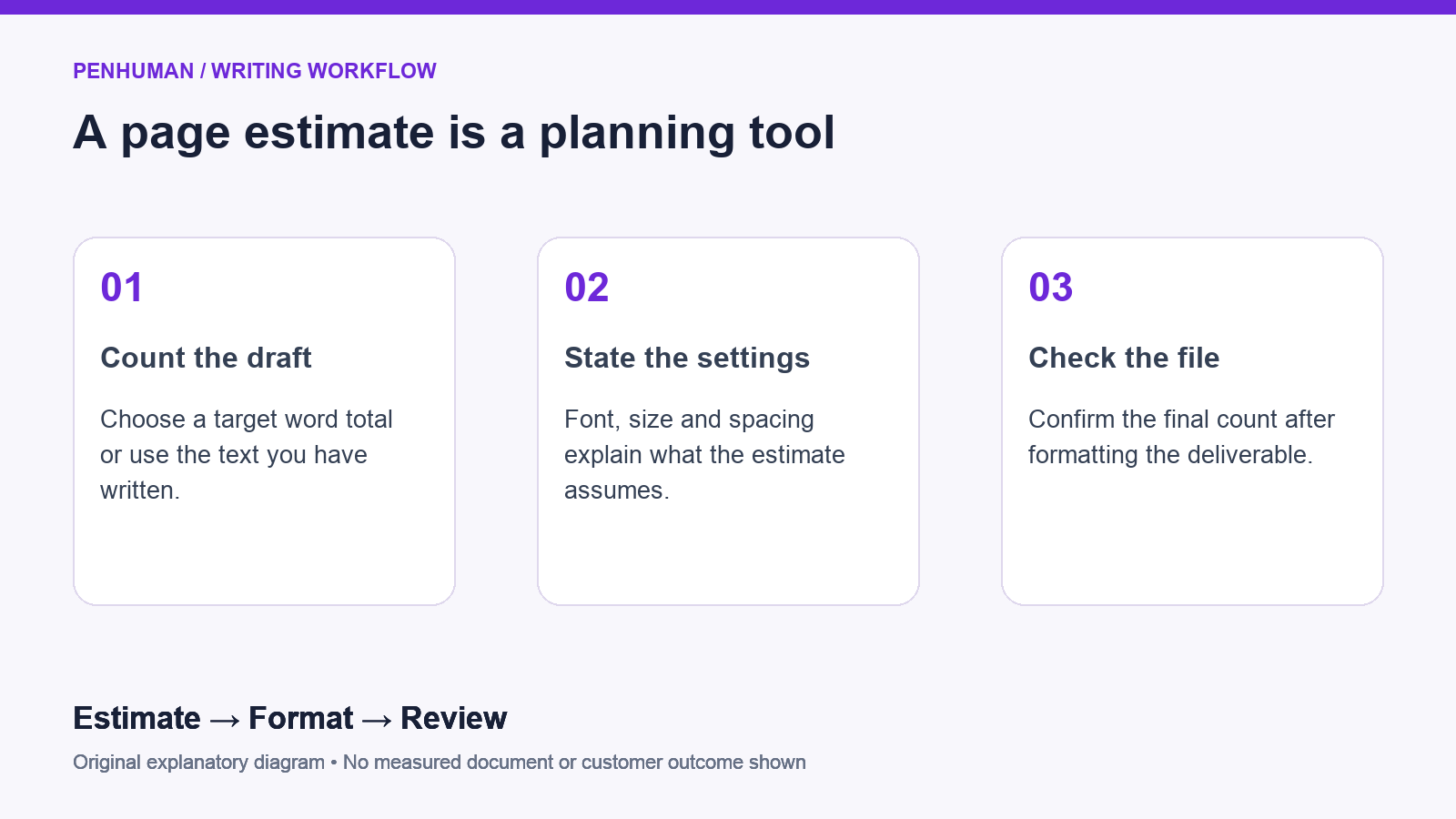
A words to pages estimate helps you plan: roughly how much space will a draft occupy with the formatting you have chosen? It does not determine the final page count of a report, proposal or essay. The finished layout determines that result. Start with your word count, choose settings close to your intended layout, and use the result to plan the draft. Before sharing it, open the finished document and inspect the pages, including headings, lists, images and any required front matter.
Start with the PenHuman Words to Pages calculator and enter either a word total or the draft itself. The public calculator works without a signup. Share the selected font, size and spacing alongside the estimate so a colleague understands the assumptions. An estimate described only as four pages leaves the layout assumptions unclear. A useful handoff includes the draft version and the planned format, then replaces the estimate with the actual count once the document is laid out and ready for review.
Why the same draft takes different amounts of space
Word widths vary, and changing fonts changes their shapes and spacing too. A document full of short sentences and compact paragraphs flows differently from a document with long headings, numbered steps and tables. Even when the word total stays fixed, a page break before a new section changes where the next text begins. Use the calculator result to start planning that layout, rather than treating it as a measurement of an unseen file. Leave room in the plan for material beyond the main prose.
Check line spacing separately from paragraph spacing. The first sets the distance between lines within a paragraph; the second adds space before or after the paragraph. Microsoft documents both controls in its guidance on line and paragraph spacing. A draft with frequent short paragraphs might gain substantial vertical space from the paragraph setting alone. Compare those settings with the brief before cutting useful information to meet a page limit. Keep any specified layout requirements intact and edit the wording when the formatted document still runs long.
A worked example with explicit calculator settings
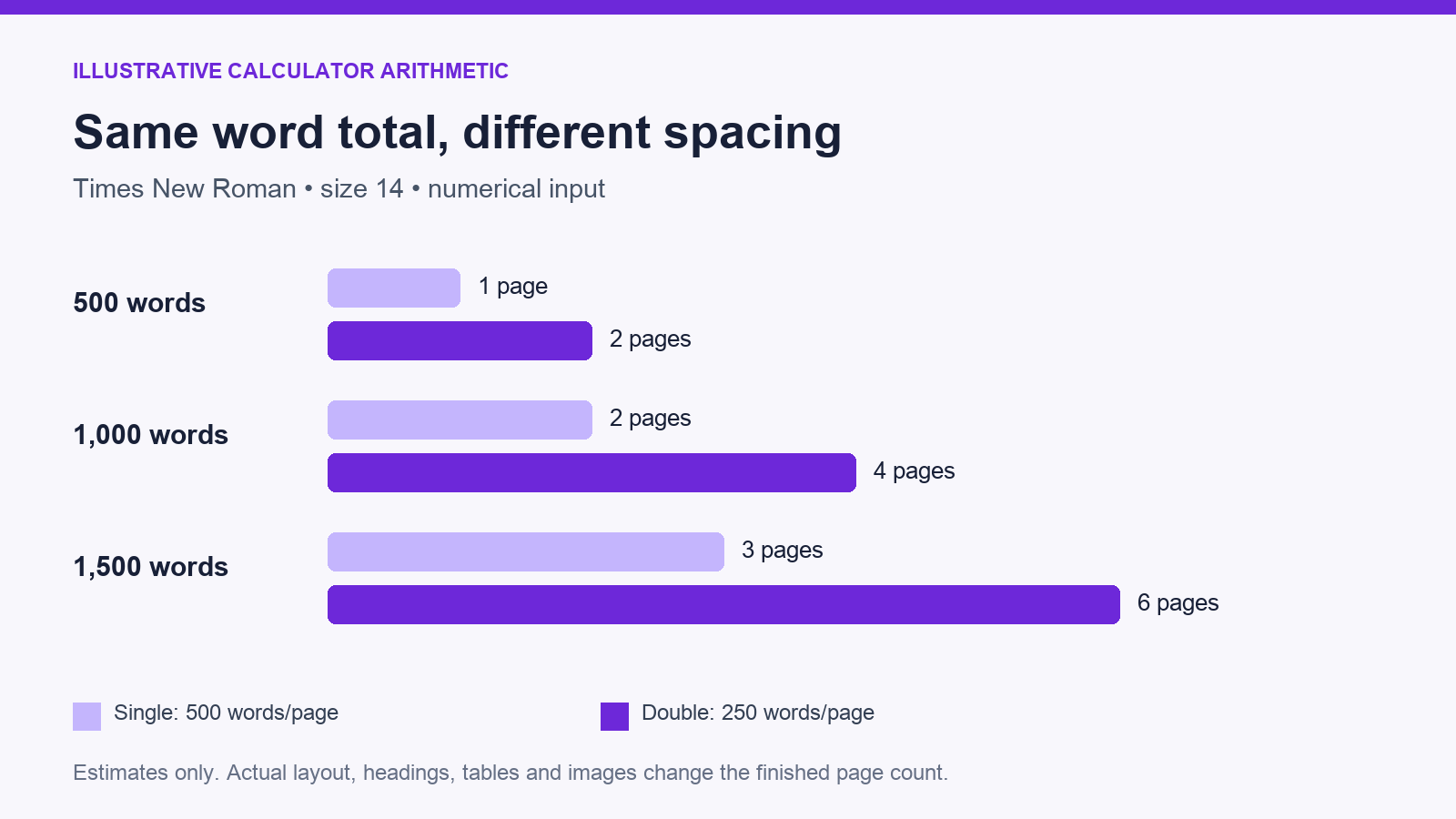
For an illustrative example, enter 1,000 as a numerical word total and select Times New Roman at size 14. In the current PenHuman calculator, the double spacing estimate uses 250 words per page. Dividing 1,000 by 250 gives 4 estimated pages. The single spacing setting uses 500 words per page for that same font and size, giving 2 estimated pages. These figures apply to this calculator configuration, not to every document. They are arithmetic examples, not measured results from a finished customer file.
Changing the selected size alters the assumptions. With Times New Roman at size 12, the calculator uses 350 words per page for double spacing, so the same 1,000 words yields about 2.86 pages. The example illustrates why attaching a font and spacing label is important. It does not dictate which layout you use for your assignment or business template. Follow the brief, then check the outcome in the real word processor. If there is a hard limit, the formatted file is the final check before you send it out.
- 500 words at size 14: 2 estimated pages with double spacing; 1 with single spacing.
- 1,000 words at size 14: 4 estimated pages with double spacing; 2 with single spacing.
- 1,500 words at size 14: 6 estimated pages with double spacing; 3 with single spacing.
- These examples use Times New Roman and numerical input; they do not account for a complete document layout.
Use the calculator with a count or with actual text
Enter a numerical total when you know the target length but have not written the draft. Use pasted text when you want the estimator to consider the draft’s actual line wrapping and paragraph structure. The input methods are related, but the results need not match. A numerical total lacks the text needed to model wrapping. In the current tool, pasted text takes precedence over a manually entered count, so clear the text field before comparing numerical examples with the chart shown in this guide.
Choose the font family, size and spacing for each draft, especially when comparing work created under different briefs. The calculator offers an approximation; it does not reproduce every margin, paper size, image, table or page-break rule in your source document. Record the settings alongside the result instead of giving a bare number with false precision. If a proposal needs a specific template, put the draft into that template early. This exposes layout constraints while there is still time to adjust the structure and preserve the information the reader needs.
Check the final count in Google Docs
On a computer, open the Tools menu in Google Docs and choose Word count to view the available document counts. Google explains that its whole-document word count excludes headers, footers and footnotes unless you select a particular section. If the brief has its own counting rules, reconcile those exclusions with the requirement instead of assuming every counter measures the same material. For example, record whether your quoted length includes the reference list and captions. An editor benefits more from a clear counting scope than from matching totals across different tools.
If the document has a page limit, first check that Google Docs uses Pages format. Open File, then Page setup, and select Pages rather than Pageless. Google describes Pageless as a continuous scrolling format where line breaks adjust to screen size. It is useful for some collaborative documents, but its scrolling view is not a substitute for checking a paginated deliverable. Apply the requested paper size, margins and other layout settings, then review the document in the final format your recipient will receive.
Check the final count in Microsoft Word
Start with the document status bar in Microsoft Word and open its word-count details. Microsoft explains that Word also counts pages, paragraphs, lines and characters, and that selecting text gives a partial word count. Use a selection when the brief limits only the main body of a document. State the count’s scope beside the result so the next reviewer understands what you included. When comparing versions, use the same selection boundaries and the same document settings; otherwise, the apparent change mixes editing with a change in measurement.
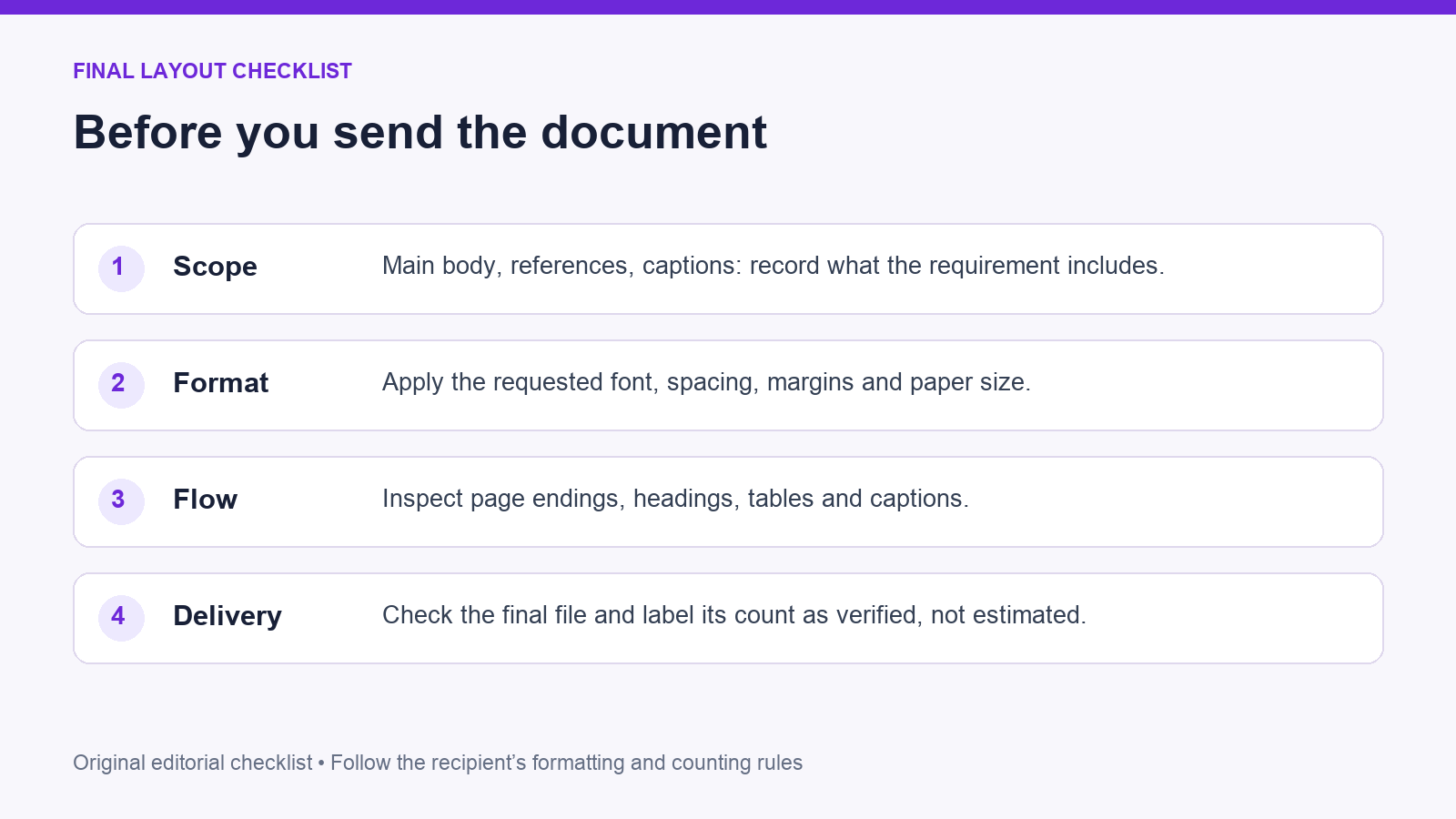
Review the margins and paragraph settings before you rely on the final count. Microsoft provides margin controls under Layout and Margins, along with line and paragraph spacing controls for selected text or the document. Use the required template rather than compressing the layout to disguise an overlong draft. Once formatting is settled, review page endings and the placement of headings, tables and captions. Check the exported deliverable as well as the editable source, because the recipient needs a readable file with its intended structure preserved.
Shorten a draft by editing its content
If a draft runs long, begin with what the reader must know or do. Cut repeated introductions, duplicated evidence and sentences that restate a heading without adding information. Keep qualifications, dates, quantities and source attribution that affect the meaning. For example, a fictional project update needs its decision, owner, deadline and unresolved issue before it needs a long description of the meeting. Cut the meeting recap, not the decision, owner, deadline or unresolved issue, and check that the update remains actionable. Recount the draft after the changes are complete.
Use the PenHuman Word Counter to inspect words and characters before you move to an editing tool. If you revise with the Humanizer, save the original and compare the result against it for factual changes. Basic includes 3,900 Humanizer characters that do not reset; its draft range is 80–600 words and the text must also fit the remaining character balance. A short headline alone falls below that range. For a small wording change, manual editing is often the clearest next step, followed by another count.
A repeatable handoff from estimate to finished file
Add a short note to the working draft: what is being counted, the selected font and spacing, the required document format, and whether the number is estimated or verified in the final file. That gives collaborators a shared reference without making them guess your assumptions. Update that note after substantive edits or layout changes. If a reviewer adds a table or a new section, check the file again before treating the old page total as current. Keep the source document so the next reviewer starts with the same version.
Move from a planning estimate to a formatted draft, then finish with a visual check. Size the work with the calculator, inspect the text with the word counter, and confirm the deliverable in your document editor. Keep the content useful at every stage instead of expanding or shrinking it solely to hit a guessed page total. If the result is close to a strict limit, leave time for the recipient’s required formatting and any last corrections before you send the file.
Frequently Asked Questions
How many pages is 1,000 words?
There is no fixed answer that applies regardless of formatting. In the numerical example above, Times New Roman at size 14 gives 4 estimated pages with double spacing or 2 with single spacing in PenHuman. Change the font size, layout or structure and the result changes. Keep those values attached to their stated assumptions. For a real assignment or report, set the requested format in your editor and inspect the finished file. Its page count, including the elements your brief includes, is the result to use.
Why does pasted text give a different estimate from a typed word total?
A numerical word total supplies a quantity without the actual words or paragraph structure. Pasted text supplies that structure, letting the current calculator approximate line wrapping as well. The space text occupies changes with short lines, long words and paragraph breaks. The difference does not mean the completed document has been measured. Compare the same input method with the same selected settings, and use the final formatted document to resolve a strict page requirement before handing the file to its recipient.
Can I use words to pages estimates for a strict page limit?
Yes, use the estimate for planning before you check the final layout. Read the requirements for font, spacing, margins, paper size and included sections first. Then use an estimate to plan the scope of the draft and put the text into the required template. Inspect the final deliverable for its actual count and readability. If it runs long, edit unnecessary repetition while preserving facts and needed explanations. Avoid treating the calculator’s decimal result as a promise that the formatted document will fit within a strict limit.